
Products
Develop, analyze, and administer databases with Toad
All Products
Toad® for Oracle Subscription
Save time and reduce risk with the leading Oracle database development software tool
- #1 commercial Oracle database development/management tool
- Deliver applications faster and minimize risks associated with application changes
- Easier Oracle database management
- Available in Base, Pro, Pro DB Admin, Xpert Plus, Dev Plus and DBA Plus Editions
Toad® for Oracle – Sensitive Data Protection
Find and control sensitive data across all your Oracle databases
- Quickly discover sensitive data across all your Oracle databases for GDPR compliance and other regulations
- Automates discovery, streamlines reporting and automatically notifies developers when they’re referencing sensitive data
- Integrates into many Toad features, such as Editor, VOEs and DB Health Check
Toad® DevOps Toolkit
Execute key database development, testing, and deployment functions within your DevOps workflow
- Use key Toad for Oracle functionalities, exposed as programmable objects that can be called from most build automation servers
- Ensure quality and maintainability through code reviews and unit tests
- Meet project deadlines across application and database deployment
Toad Edge®
The next generation of Toad tooling – a database development tool for Open Source Databases like MySQL and Postgres
- Supports MySQL, MariaDB, PostgreSQL, EDB Postgres
- Object and user management
- Advanced JSON data browser/editor
- Schema compare and sync
- SQL query monitor
- Jenkins continuous integration plug-in
- Supports Windows and Mac
Toad® for IBM DB2
Spend less time managing DB2 and more time innovating
- Get advanced administration, performance, and change management backed by over a decade of development expertise and user input
- Finish daily development and administration tasks quickly and accurately
- Use with both on-premises and cloud-based instances
Toad® for SQL Server Subscription
Run faster, more reliable databases
- Maximize productivity through extensive automation, intuitive workflows, and built-in expertise
- Resolve issues, manage change, and promote high quality code
- Manage your databases simply and proactively, in concert with Microsoft tools
Toad® for SAP Solutions
Improved SAP database development, administration and performance
- Minimize the learning curve of SAP HANA, ASE, IQ or SQL Anywhere with a single Toad toolset.
- Write, edit and tune SQL; manage objects; and compare and sync servers, schemas and data; all in an automated fashion.
- Pinpoint the root cause of database bottlenecks and resolve them quickly with Spotlight and SQL Optimizer components.
Toad® Data Point
Improve analysis productivity by streamlining data access, preparation and provisioning
- Access nearly any data source, build queries and automate reporting workflows
- Blend data from multiple sources in a single query
- Profile and cleanse data, integrate with Excel and simplify data federation to reduce data delivery time in half
- Choose a streamlined interface for simpler query-to-report workflows
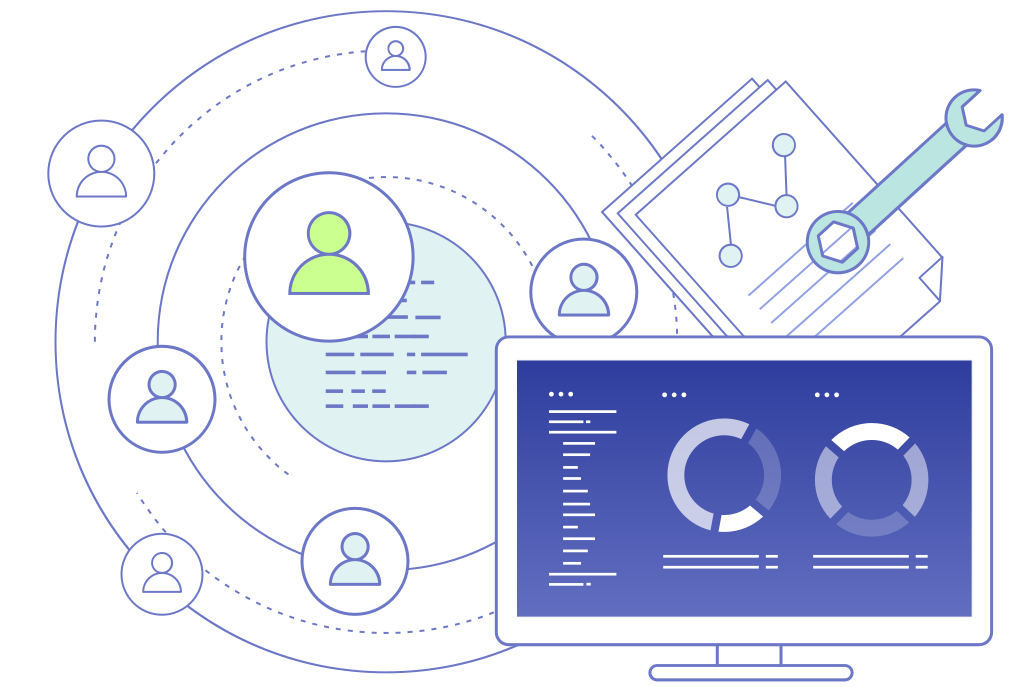
Toad® Intelligence Central
Simplify file sharing and data provisioning
- Improve collaboration between Toad users through secure, governed access to SQL scripts, project artifacts, provisioned data and automation workflows
- Share all Toad artifacts — including entity relationship diagrams, query files, automation scripts, SQL files and more — with other Toad users
- Abstract structured and unstructured data sources through advanced data connectivity
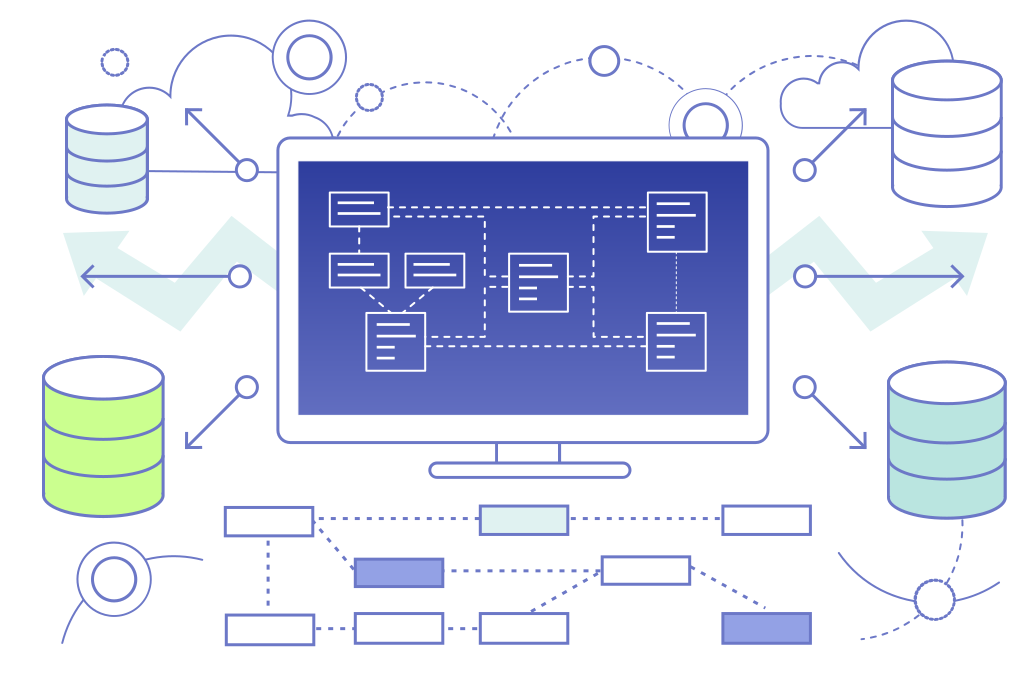
Toad® Data Modeler
Create high-quality data models using this multi-platform data modeling software
- Rapidly deploy accurate changes to data structures across more than 20 different platforms
- Construct logical and physical data models, compare and modify scripts, and reverse and forward engineer both databases and warehouse systems
- Simplify database design, maintenance and documentation
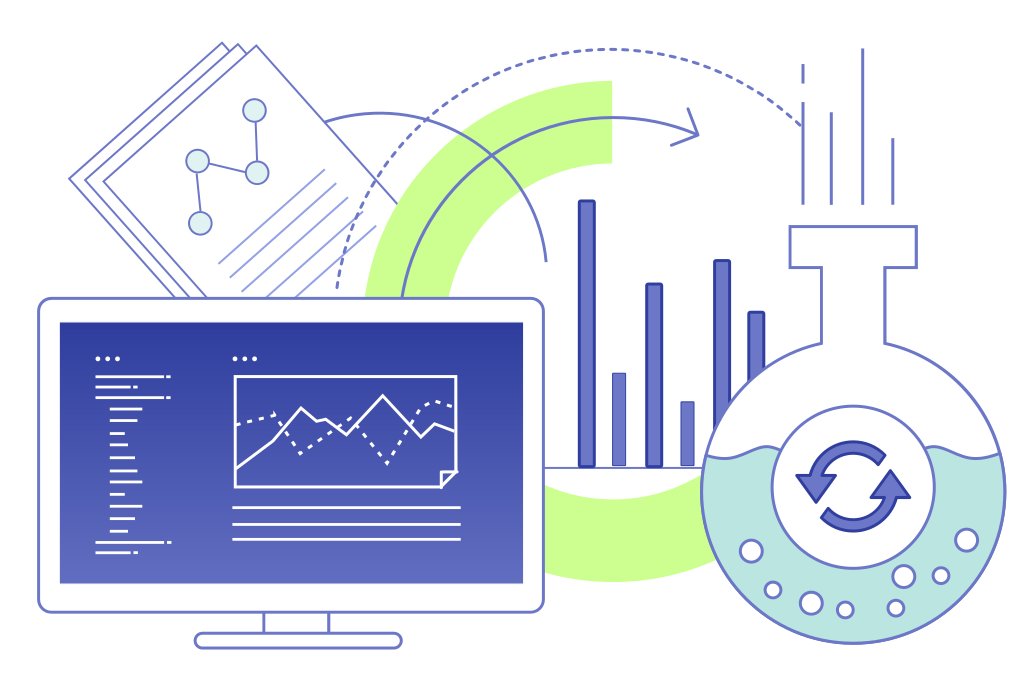
Benchmark Factory® for Databases
Ensure database performance with a simplified testing solution
- Validate performance and scalability to mitigate risks associated with planned changes
- Conduct database workload capture and replay on Oracle and SQL Server – both on-premise and in the cloud
- Generate virtual user and transaction workloads to stress test databases
- Supports Oracle, SQL Server, IBM DB2, SAP ASE, MySQL, Postgres. Also supports other databases via ODBC connectivity.

Toad® Data Studio
An all-in-one tool for simplifying heterogeneous database management
- A single tool for multiple data sources
- SQL and DDL generation
- SQL editor
- JSON/XML viewer and editor
- Data compare
- Desktop automation